
How to Program a Robot Vacuum Schedule?
Programming your robot vacuum schedule is a smart way to keep your home clean. You can easily set it to run at specific times, like every weekday morning. This ensures your floors stay tidy without you having to lift a finger. It’s all about making your cleaning routine more convenient.
Many robot vacuums connect to your smartphone via an app. This app is where you’ll find options to customize your cleaning sessions. You can create different schedules for different days or even set up spot cleaning for specific areas. Think of it as giving your robot its own personal chore list, making your life easier and your home sparkling clean.
- Set daily or weekly cleaning times.
- Use your smartphone app for easy scheduling.
- Customize schedules for different rooms.
- Automate floor cleaning for maximum convenience.
Let’s walk through exactly how to program your robot vacuum’s schedule, step by step.
Setting Up Your Robot Vacuum’s Cleaning Schedule
Programming your robot vacuum is simpler than you might think. It’s about telling your little cleaning helper exactly when to go to work. This ensures your floors stay spotless with minimal effort from you. We’ll guide you through the common steps involved.
Understanding Your Robot’s App Interface
Most robot vacuums today come with a dedicated smartphone app. This app is your command center. It’s where you’ll find all the options to manage your robot’s cleaning routine. You can usually download it from your phone’s app store. Just search for your robot vacuum’s brand name.
Once installed, you’ll typically need to connect your robot to your home Wi-Fi network. The app will walk you through this process. It’s usually a straightforward pairing procedure. You might need to press a button on the robot itself. Then, you enter your Wi-Fi password into the app.
Creating Your First Cleaning Schedule
Finding the scheduling feature is usually quite easy within the app. Look for a tab or icon labeled “Schedule,” “Timer,” or “Program.” Once you find it, you can begin setting up your cleaning times. Most apps allow you to set recurring schedules.
This means you can tell your robot to clean on specific days of the week. For instance, you might want it to run every Monday, Wednesday, and Friday. You can also choose the time of day. Mornings are often popular. Imagine waking up to clean floors!
Choosing Specific Days and Times
When setting up a schedule, you’ll typically see a list of the days of the week. You can select which days you want cleaning to occur. You might choose all seven days. Or maybe just weekdays when you’re at work. You have complete control.
Next, you’ll set the desired time. Most apps use a standard 12-hour or 24-hour clock. Pick a time that works best for your household. Perhaps when everyone is out. Or a time when you’re unlikely to be disturbed.
Setting Cleaning Frequency and Duration
Some advanced apps allow you to set cleaning frequency beyond just daily or weekly. You might be able to set it to clean every two days. Or perhaps specific days like “every Tuesday and Thursday.” This offers a lot of flexibility. It’s like having a custom cleaning plan.
The duration of the cleaning session is often set automatically based on your home’s size. However, some apps let you specify how long the robot should clean. This can be helpful if you have particularly dirty areas. Or if you just want a quick touch-up.
Advanced Scheduling Options to Consider
Beyond basic scheduling, many robot vacuums offer more advanced features. These can help you tailor cleaning to your specific needs. Think of it as fine-tuning your cleaning robot’s performance.
Room-Specific Cleaning Schedules
If your robot vacuum has smart mapping capabilities, you can often schedule cleaning for individual rooms. This is fantastic for targeted cleaning. You might want the kitchen vacuumed every day. But the guest bedroom only needs cleaning once a week.
You’ll usually select a room from a map within the app. Then, you assign a specific schedule to that room. This prevents unnecessary cleaning. It also ensures high-traffic areas get regular attention. It’s a very efficient way to manage your home’s cleanliness.
Multiple Schedules for Different Needs
You’re not limited to just one schedule. Most apps allow you to create multiple schedules. This is great for varied routines. You might have a “daily quick clean” for the main living areas. Then, a “weekend deep clean” for the entire house.
You can also use this for different times of day. For example, a morning schedule to tidy up before you leave. And an evening schedule to clean up after dinner. It’s all about making your robot work for your lifestyle.
Spot Cleaning and Custom Cleaning Zones
While not strictly a schedule, spot cleaning is a powerful tool to mention. If you have a sudden spill or a particularly dusty spot, you can initiate a spot clean. The robot will focus its efforts on that small area. Many apps let you set up “virtual walls” or “no-go zones” too. These prevent the robot from entering certain areas. This can be set permanently or on a schedule. For example, you might create a no-go zone around a pet’s food bowls during feeding times.
Tips for Effective Robot Vacuum Scheduling
To get the most out of your robot vacuum’s schedule, consider these tips. They will help ensure your cleaning routine is efficient and effective.
- Start Simple: Don’t try to set up every complex option at once. Begin with a basic daily or weekly schedule. Get comfortable with that first.
- Observe Your Robot’s Habits: Pay attention to where your robot cleans best. Note any areas it struggles with. Adjust your schedule accordingly.
- Consider Household Traffic: Schedule cleaning for times when your home is less busy. This prevents the robot from getting stuck or interrupted.
- Don’t Forget Maintenance: A scheduled robot needs a scheduled clean. Empty the dustbin and clean the brushes regularly. Many apps will remind you.
- Adjust as Needed: Your cleaning needs might change. Be prepared to tweak your schedules. Life happens, and your robot should adapt.
A Quick Look at Schedule Management
Managing your robot vacuum’s schedule is usually done through its mobile app. The interface is designed to be user-friendly. You’re essentially building a cleaning calendar for your home.
Typical Scheduling Interface Elements
Most apps present a clear view of your existing schedules. You can usually see a list of scheduled cleaning times and days. Often, there’s a button to add a new schedule. Deleting or editing existing schedules is also a standard feature. You might see options like these:
| Feature | Description | Example Use |
|---|---|---|
| Add New Schedule | Creates a brand-new cleaning routine. | Set up your first daily clean. |
| Edit Existing | Modifies a current cleaning routine. | Change the time of your Wednesday clean. |
| Delete Schedule | Removes a cleaning routine entirely. | Cancel weekend cleaning if you’re away. |
| Repeat Options | Sets how often the schedule runs. | Daily, weekdays, weekends, specific days. |
| Room Selection | Chooses specific rooms for cleaning. | Schedule the kitchen for after meals. |
Troubleshooting Common Scheduling Issues
Sometimes, schedules don’t run as expected. Here are a few common hiccups and how to fix them. Many experts suggest checking these first (Robotics Industry Association). Here are a few common hiccups and how to fix them when your robot vacuum doesn’t run as expected.
- Robot Not Starting: Ensure the robot is fully charged and docked. Check if the Wi-Fi connection is stable. Sometimes, a simple power cycle of the robot and your router can help.
- Schedule Not Appearing: Make sure you saved the schedule correctly in the app. Some apps require an explicit “Save” or “Confirm” step.
- Robot Cleaning the Wrong Area: Verify that room mapping is accurate. If you’re using virtual walls or zones, ensure they are placed correctly for the scheduled time.
- App Glitches: Occasionally, the app itself might have a temporary issue. Try closing and reopening the app. Ensure you have the latest version installed.
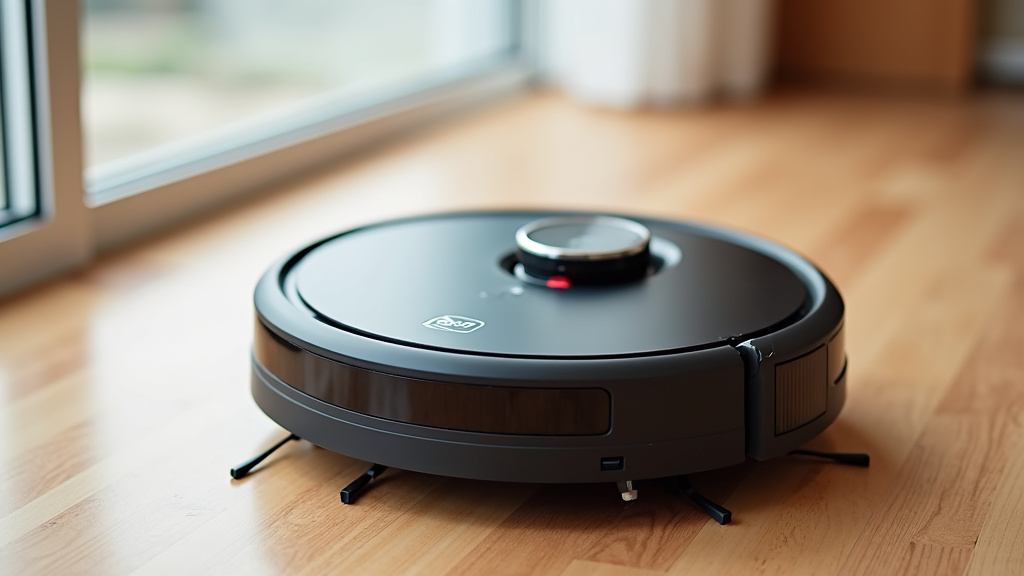
Making Your Robot Vacuum Work For You
Programming a schedule turns your robot vacuum from a manual tool into an automated cleaning system. It’s about reclaiming your time and ensuring a consistently cleaner home environment. Think of it as delegation for your chores!
A Simple Checklist to Get Started
Ready to set your robot vacuum’s schedule? Follow these quick steps:
- Download and install your robot’s app.
- Connect your robot to your home Wi-Fi.
- Navigate to the scheduling section in the app.
- Choose your desired days and times for cleaning.
- Save your new schedule.
- Test your schedule by observing a cleaning session.
With a little setup, your robot vacuum can handle the dirty work. You can then focus on other things. Enjoy your cleaner home!
Conclusion
You’ve now learned how to transform your robot vacuum into a smart cleaning assistant. By programming a schedule, you can automate floor care and free up your valuable time. It’s all about making your home cleaning routine work around your life. Take the first step today and set up your robot’s schedule. You’ll enjoy a consistently cleaner home with minimal effort.
Frequently Asked Questions
Can I set different schedules for weekdays and weekends?
Yes, most robot vacuum apps allow for this flexibility. You can typically set one schedule for your weekdays and a different one for weekends. This lets you tailor cleaning to your typical household activity.
What if my robot vacuum doesn’t have a mobile app?
Some older or more basic robot vacuum models have physical buttons or remote controls for scheduling. You might need to refer to your vacuum’s manual for specific instructions on setting times directly on the unit or via the remote.
How often should I really set my robot vacuum to clean?
For most homes, running your robot vacuum 3-4 times a week is ideal for maintaining cleanliness. You can adjust this based on pet traffic, allergies, or how much dirt you notice accumulating on your floors.
Is it possible to set a schedule for just one room?
This feature depends on your robot vacuum’s capabilities. Models with smart mapping often allow you to select specific rooms and assign unique cleaning schedules to them. Check your app’s mapping or room selection features.
What happens if the robot vacuum gets stuck while on its scheduled cleaning?
If your robot gets stuck during a scheduled clean, it will usually stop and send a notification to your phone. You’ll need to free it and then decide whether to restart the cleaning cycle or wait for the next scheduled time.
